
ABCToisanParent
Member
I've used the old Pleco for a long time to look up words while I took Cantonese using Yale Romanization or Mandarin using Pinyin, but I just bought the Pleco 4.0 Pro Bundle with the ABC Cantonese dictionary and Kaho Cantonese TTS. I have an iPhone 13 Pro Max with 512GB and the latest IOS 27 with Pleco 3.99.1.47.0 Built 9/17/26. I have a background in SW QA.
I'm a parent who knows Taishanese and a limited number of characters. My kids are in Mandarin Immersion and taking Cantonese on the weekends. My goal is to help them with the Mandarin writing homework in simplified Chinese and their Cantonese homework in traditional Chinese. Because I only know Taishanese, I need proper pronunciation in standard Cantonese and help my kids learn words, hopefully through flashcards.
Here are some initial impressions from my purchase to my first tasks of using Pleco.
Installation and first usage
After purchasing the Pro bundle on the website, I could easily enter the registration number on my iPhone and iPad. The iPhone has the Pleco beta and I have the legacy version as well. I'm trying to focus on using the new beta, but I may go to the old app if I can't get something to work.
1. When I start up the app, I always get the Registration ID modal dialog. Since I already have my registration ID in my email from the original purchase, I wasn't sure of the purpose, so I said remind me later, but now it shows up all the time. I suppose I just need to say No at least once.
2. I went into settings to set the app to show both the traditional and the simplified characters (the s- option wasn't very clear, but I suppose it puts a prefix to provide a visual indicator that it is simplified outside of the bracket). I set the romanization to Pinyin and Yale Romanization. I ask it to pronounce the words in Mandarin and in Cantonese.
3. When I search for a character, I see characters and romanization underneath; it's not immediately clear what GY and YY represent, and there was no obvious way to find a legend. For Wu/Nhg I can guess that GY must be pinyin, and YY must be Yale, but I don't have an easy way to remember the designation, especially if it is for words I might not immediately recognize the pronunciation. Pressing the white and black speaker icons do the same thing for Mandarin and then Cantonese, but it would be nice if there were some visual indicator similar to the one next to the word like the GY/YY to help associate the two, although I figured it out if I pressed both buttons and compared them to the GY/YY pronunciations. I suppose if th the speaker icons had a consistent shade (white/black or perhaps a combo gray), then I would know the expected pronunciation language. Perhaps an optional long press could provide extra hints on the legend meaning, the speaker language setting, or the speaking order.
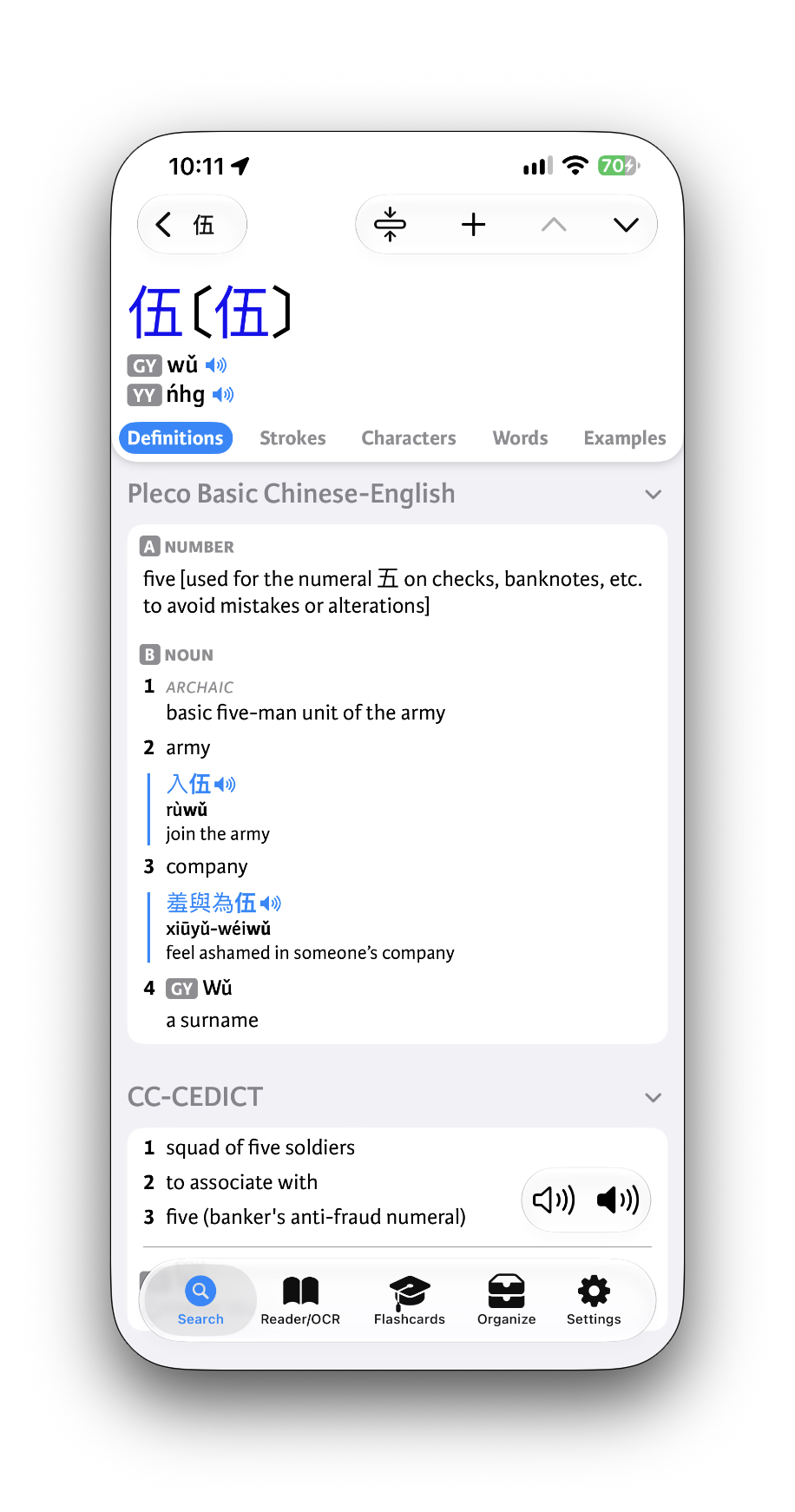
4. When I click on the speaker next to the words to pronounce, I can hear that it is rotating through the TTS, seemingly one male and one female, but since I purchased the Kaho Cantonese, it was not obvious what order is being used to help me mentally consider one is the iOS-generated pronunciation and the other might be the Pleco voice.
5. When I click on the sentences to read them, it seems to pronounce them in the two Mandarin voices, but it's unclear how I can get it to use the Cantonese voices. In the OCR examples below it rotates through all the voices.
Reader / OCR
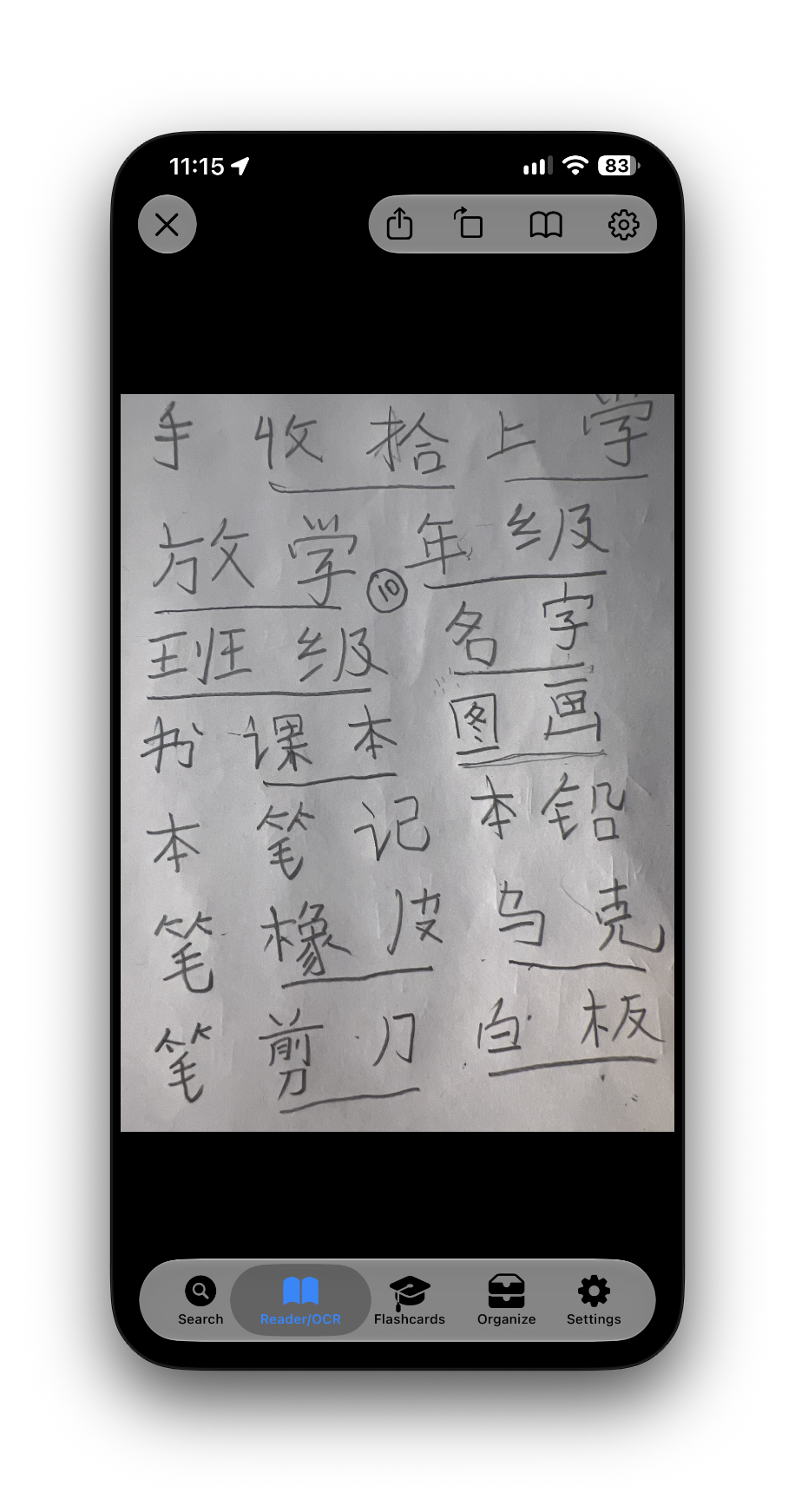
One of the first uses was to try to quickly gather a bunch of characters from my child's Chinese writing homework to see what characters go together. I was wanting to use the OCR to quickly recognize the words and then either define them or group them to find meaning.
1. The first time I tried to use it, I had problems scanning because it kept saying I was in demo mode even though I had purchased the Pro bundle. After logging the issue, Michael Love fixed the issue with added entitlements for 4.0
2. While trying to get it to work the first time, I had the live OCR icon, still OCR icon and clipboard icon. I tried taking the picture and it saved it in my unsaved photo history, but I wasn't able to do the OCR. After Michael fixed it, my Reader/OCR display changed, and I have a live OCR icon, a clipboard icon, and a World Web icon (which seemed odd), and my still photo OCR icon disappeared (although I didn't realize it first because I couldn't figure out how to save the live OCR photo until I realized the still one was gone).
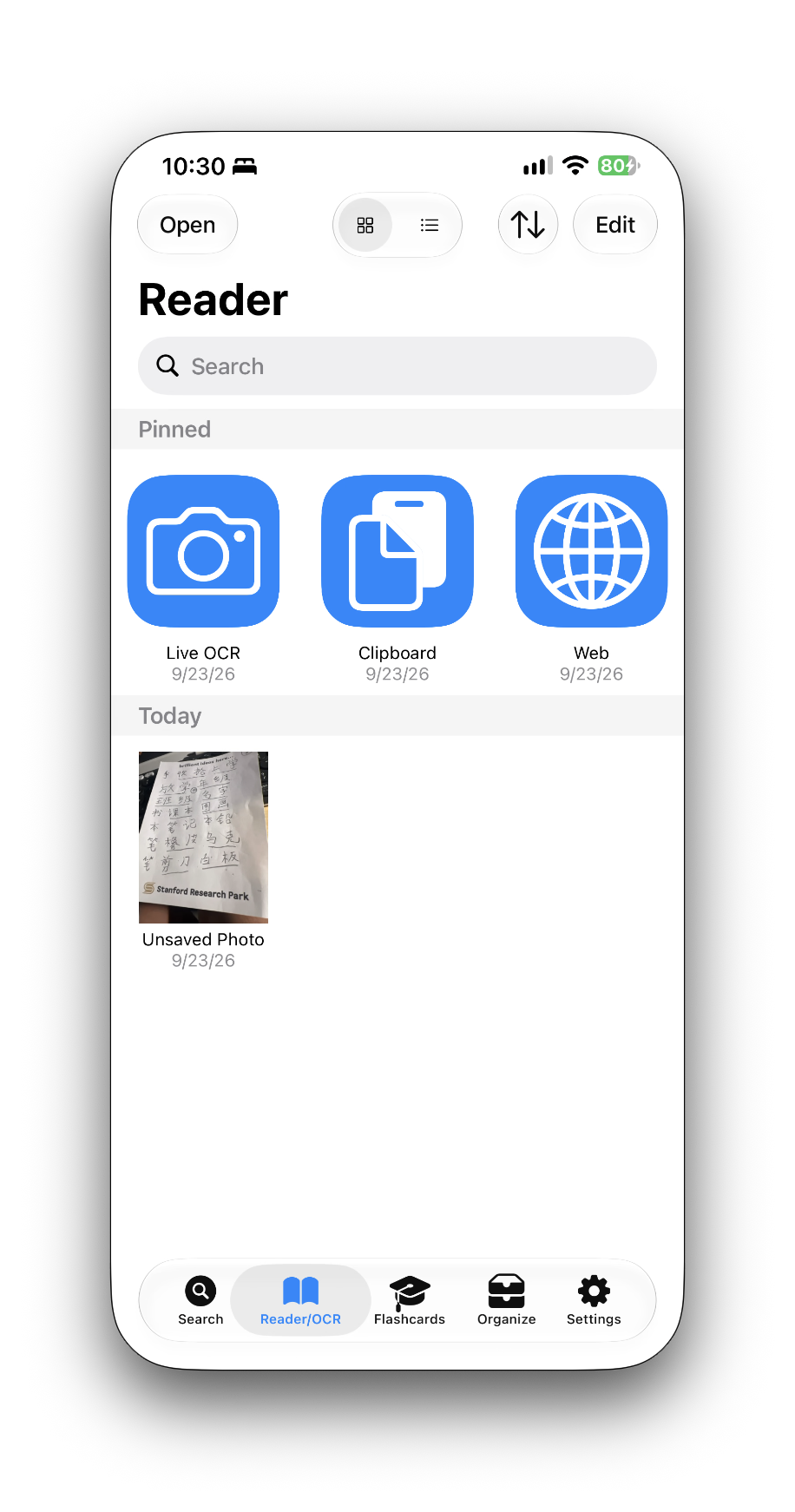
3. UI-wise, I'm still trying to figure out the OCR use case flow. In the example, I wrote down all the characters in my child's character homework to help him group the characters into word phrases, then used Pleco to find them and eventually create flashcards. Here's my experience with Live OCR and Still OCR.
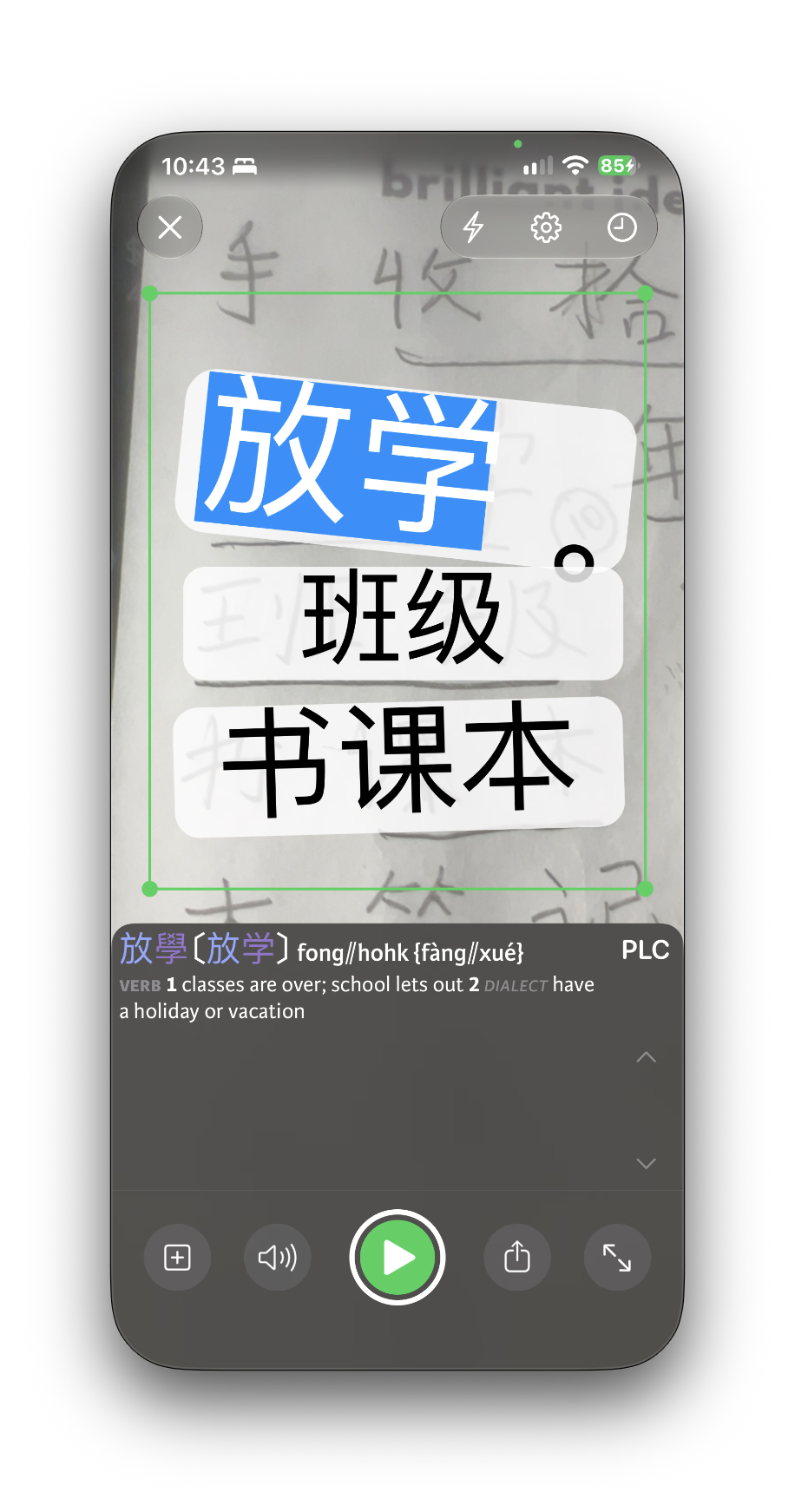
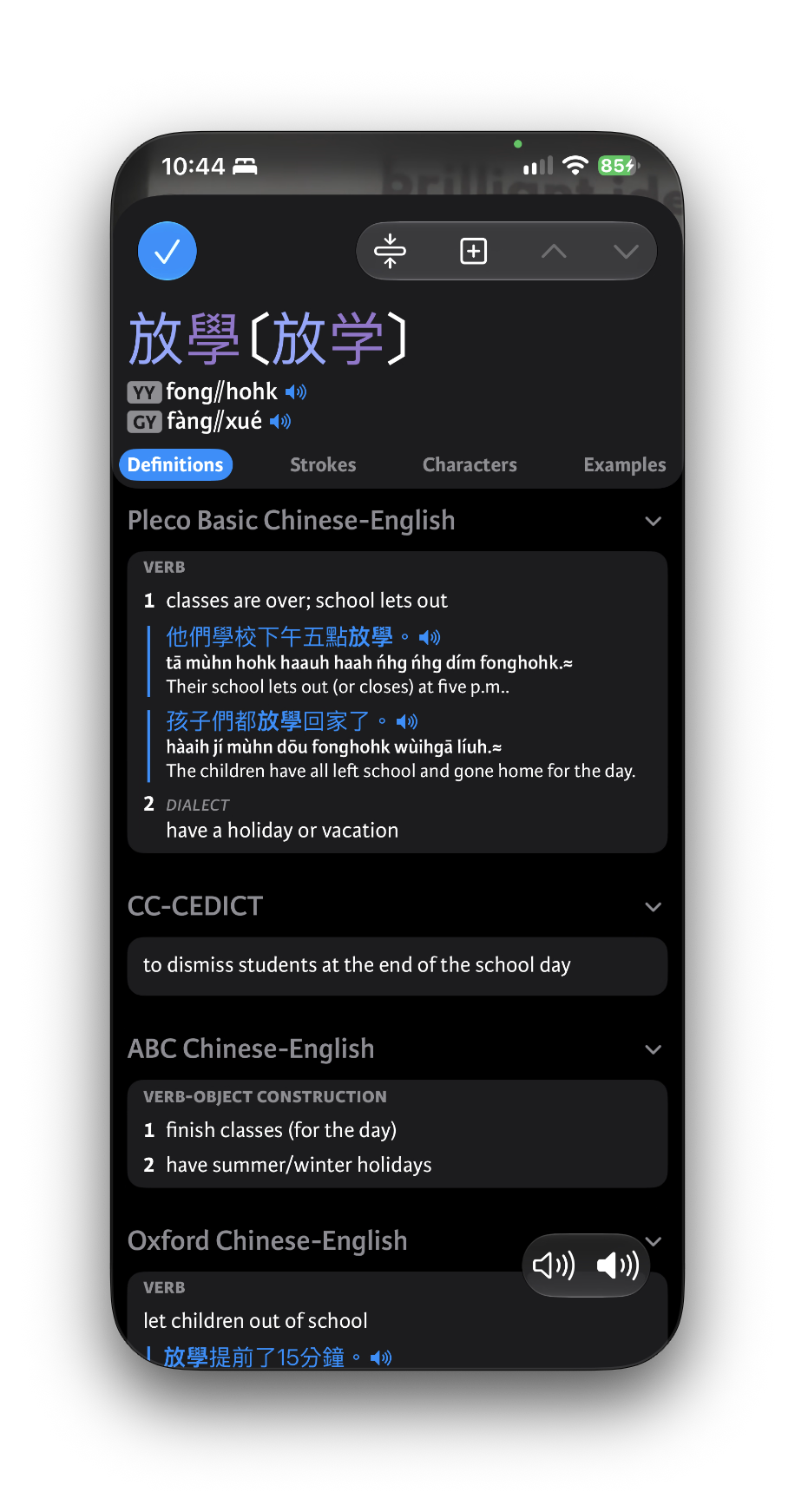
3a. The live OCR is to look at live information and get definitions and such, but not for the purposes of saving it. I can pause to check out words, but it's all a live usage flow. In this view, when I select fong hohk. I see the plus sign to add to flashcard (not immediately intuitive, but it makes sense after I used it--I'll test more later). I used the two open arrows to expand the definition (not immediately intuitive, but I figured it out). The pronunciation of "classes are over; school lets out" as it rotates through the various voices has a problem because it seems to stutter or start pronouncing some English-like characters in the reading. This seems like a TTS bug here somewhere. It does the male Mandarin (good), female Mandarin (good), Kaho Cantonese (good), female Cantonese (bad). Both sentences suffer the same problem with the female Cantonese speaker. A sample is attached as a zipped m4a file.
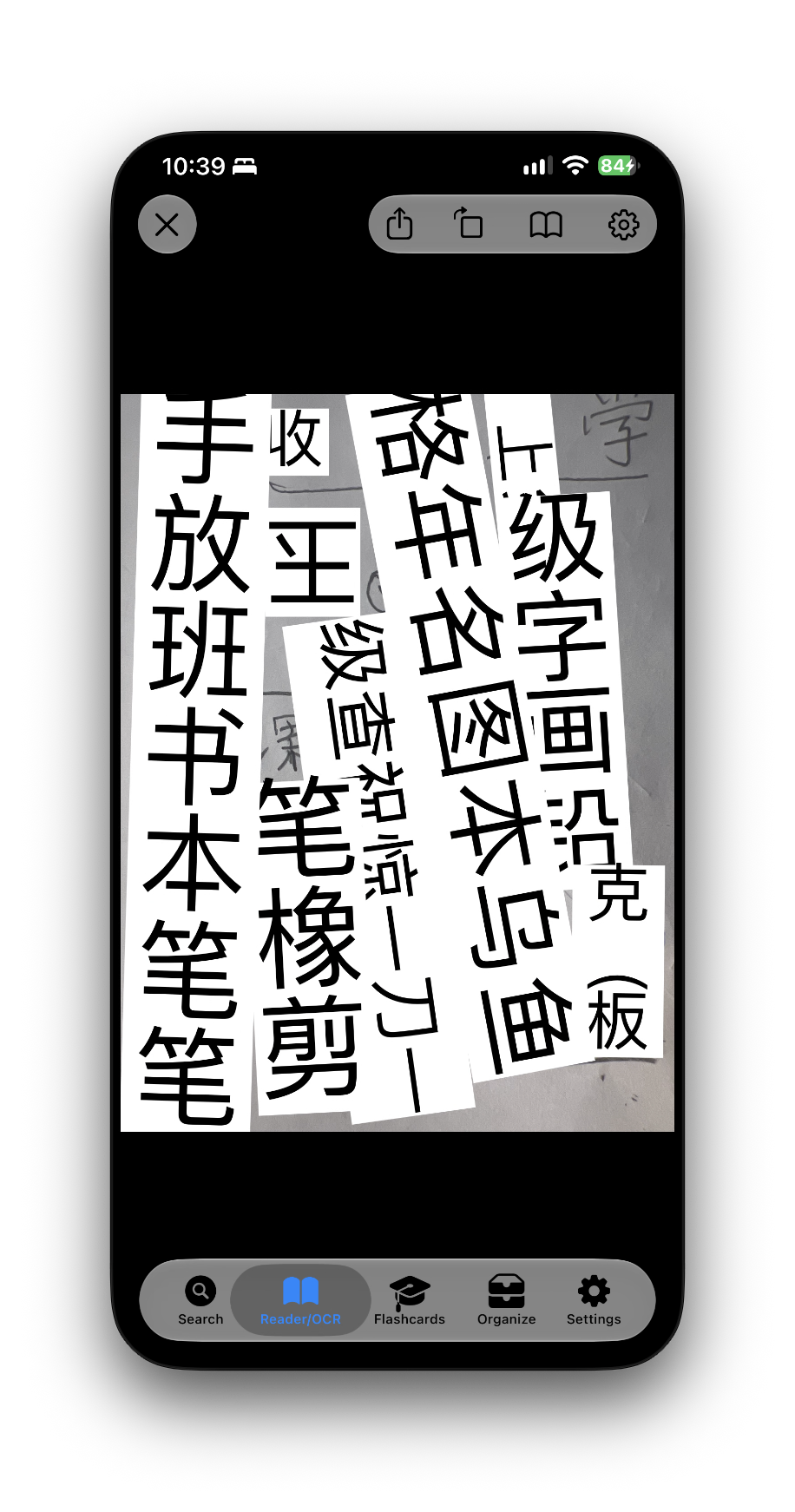
3b. The still OCR flow is where you snap a photo and can save the photo (e.g., a Chinese menu) where you can save it. I was able to use the Open button (seems like it should have Open... to indicate further action?) and then selected Still OCR / Take picture. I took a picture, but then I got a jumbled set of highlights and could not control which characters were highlighted, like I could in the live OCR view. Perhaps I could use the settings menu to adjust the highlighting so I could select, but it was not clear which method would work. You can also see that the preferred OCR grouping is top to bottom, but I wrote the characters left to right, so an option to set a reading-order preference might help.
I'm a parent who knows Taishanese and a limited number of characters. My kids are in Mandarin Immersion and taking Cantonese on the weekends. My goal is to help them with the Mandarin writing homework in simplified Chinese and their Cantonese homework in traditional Chinese. Because I only know Taishanese, I need proper pronunciation in standard Cantonese and help my kids learn words, hopefully through flashcards.
Here are some initial impressions from my purchase to my first tasks of using Pleco.
Installation and first usage
After purchasing the Pro bundle on the website, I could easily enter the registration number on my iPhone and iPad. The iPhone has the Pleco beta and I have the legacy version as well. I'm trying to focus on using the new beta, but I may go to the old app if I can't get something to work.
1. When I start up the app, I always get the Registration ID modal dialog. Since I already have my registration ID in my email from the original purchase, I wasn't sure of the purpose, so I said remind me later, but now it shows up all the time. I suppose I just need to say No at least once.
2. I went into settings to set the app to show both the traditional and the simplified characters (the s- option wasn't very clear, but I suppose it puts a prefix to provide a visual indicator that it is simplified outside of the bracket). I set the romanization to Pinyin and Yale Romanization. I ask it to pronounce the words in Mandarin and in Cantonese.
3. When I search for a character, I see characters and romanization underneath; it's not immediately clear what GY and YY represent, and there was no obvious way to find a legend. For Wu/Nhg I can guess that GY must be pinyin, and YY must be Yale, but I don't have an easy way to remember the designation, especially if it is for words I might not immediately recognize the pronunciation. Pressing the white and black speaker icons do the same thing for Mandarin and then Cantonese, but it would be nice if there were some visual indicator similar to the one next to the word like the GY/YY to help associate the two, although I figured it out if I pressed both buttons and compared them to the GY/YY pronunciations. I suppose if th the speaker icons had a consistent shade (white/black or perhaps a combo gray), then I would know the expected pronunciation language. Perhaps an optional long press could provide extra hints on the legend meaning, the speaker language setting, or the speaking order.
4. When I click on the speaker next to the words to pronounce, I can hear that it is rotating through the TTS, seemingly one male and one female, but since I purchased the Kaho Cantonese, it was not obvious what order is being used to help me mentally consider one is the iOS-generated pronunciation and the other might be the Pleco voice.
5. When I click on the sentences to read them, it seems to pronounce them in the two Mandarin voices, but it's unclear how I can get it to use the Cantonese voices. In the OCR examples below it rotates through all the voices.
Reader / OCR
One of the first uses was to try to quickly gather a bunch of characters from my child's Chinese writing homework to see what characters go together. I was wanting to use the OCR to quickly recognize the words and then either define them or group them to find meaning.
1. The first time I tried to use it, I had problems scanning because it kept saying I was in demo mode even though I had purchased the Pro bundle. After logging the issue, Michael Love fixed the issue with added entitlements for 4.0
2. While trying to get it to work the first time, I had the live OCR icon, still OCR icon and clipboard icon. I tried taking the picture and it saved it in my unsaved photo history, but I wasn't able to do the OCR. After Michael fixed it, my Reader/OCR display changed, and I have a live OCR icon, a clipboard icon, and a World Web icon (which seemed odd), and my still photo OCR icon disappeared (although I didn't realize it first because I couldn't figure out how to save the live OCR photo until I realized the still one was gone).
3. UI-wise, I'm still trying to figure out the OCR use case flow. In the example, I wrote down all the characters in my child's character homework to help him group the characters into word phrases, then used Pleco to find them and eventually create flashcards. Here's my experience with Live OCR and Still OCR.
3a. The live OCR is to look at live information and get definitions and such, but not for the purposes of saving it. I can pause to check out words, but it's all a live usage flow. In this view, when I select fong hohk. I see the plus sign to add to flashcard (not immediately intuitive, but it makes sense after I used it--I'll test more later). I used the two open arrows to expand the definition (not immediately intuitive, but I figured it out). The pronunciation of "classes are over; school lets out" as it rotates through the various voices has a problem because it seems to stutter or start pronouncing some English-like characters in the reading. This seems like a TTS bug here somewhere. It does the male Mandarin (good), female Mandarin (good), Kaho Cantonese (good), female Cantonese (bad). Both sentences suffer the same problem with the female Cantonese speaker. A sample is attached as a zipped m4a file.
3b. The still OCR flow is where you snap a photo and can save the photo (e.g., a Chinese menu) where you can save it. I was able to use the Open button (seems like it should have Open... to indicate further action?) and then selected Still OCR / Take picture. I took a picture, but then I got a jumbled set of highlights and could not control which characters were highlighted, like I could in the live OCR view. Perhaps I could use the settings menu to adjust the highlighting so I could select, but it was not clear which method would work. You can also see that the preferred OCR grouping is top to bottom, but I wrote the characters left to right, so an option to set a reading-order preference might help.
